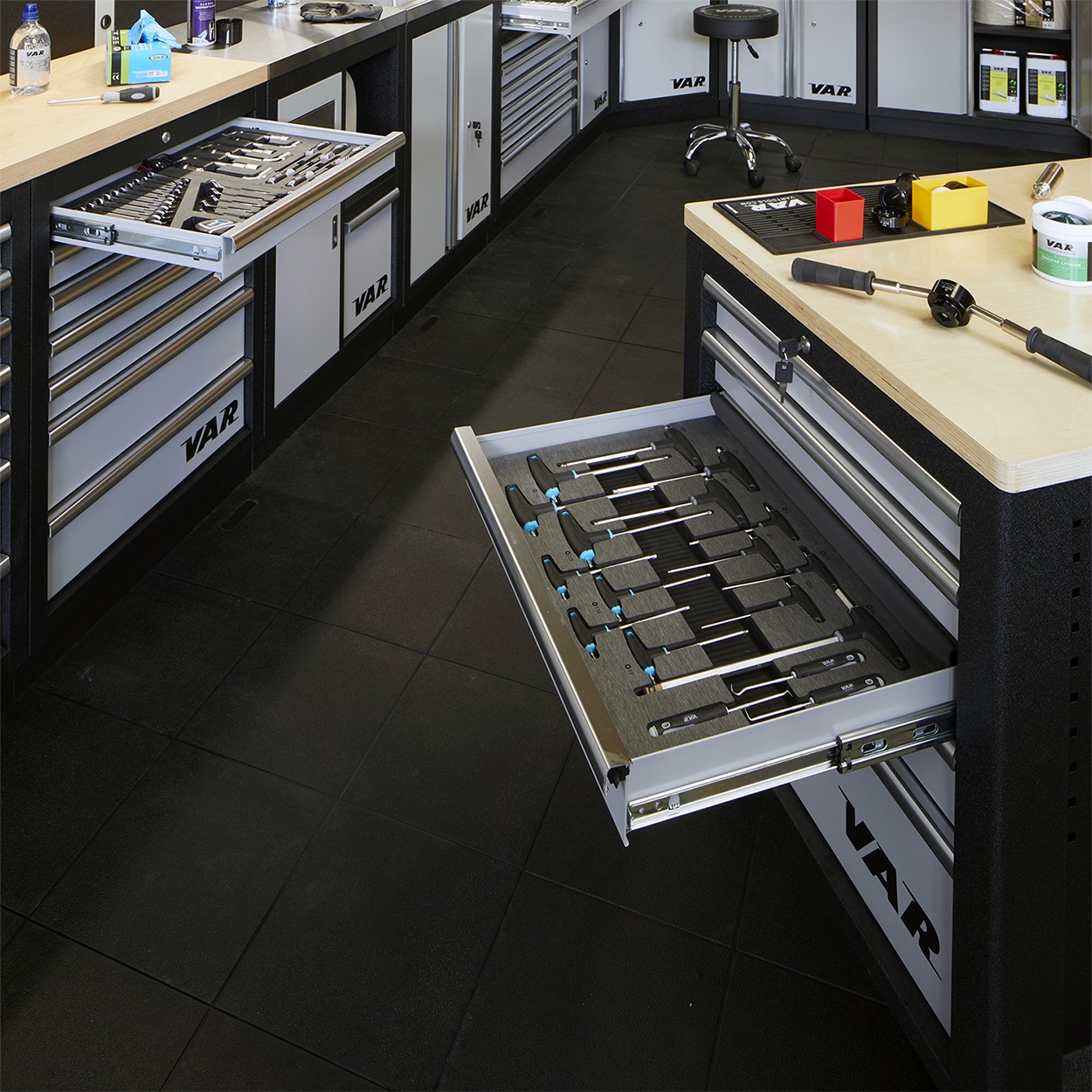
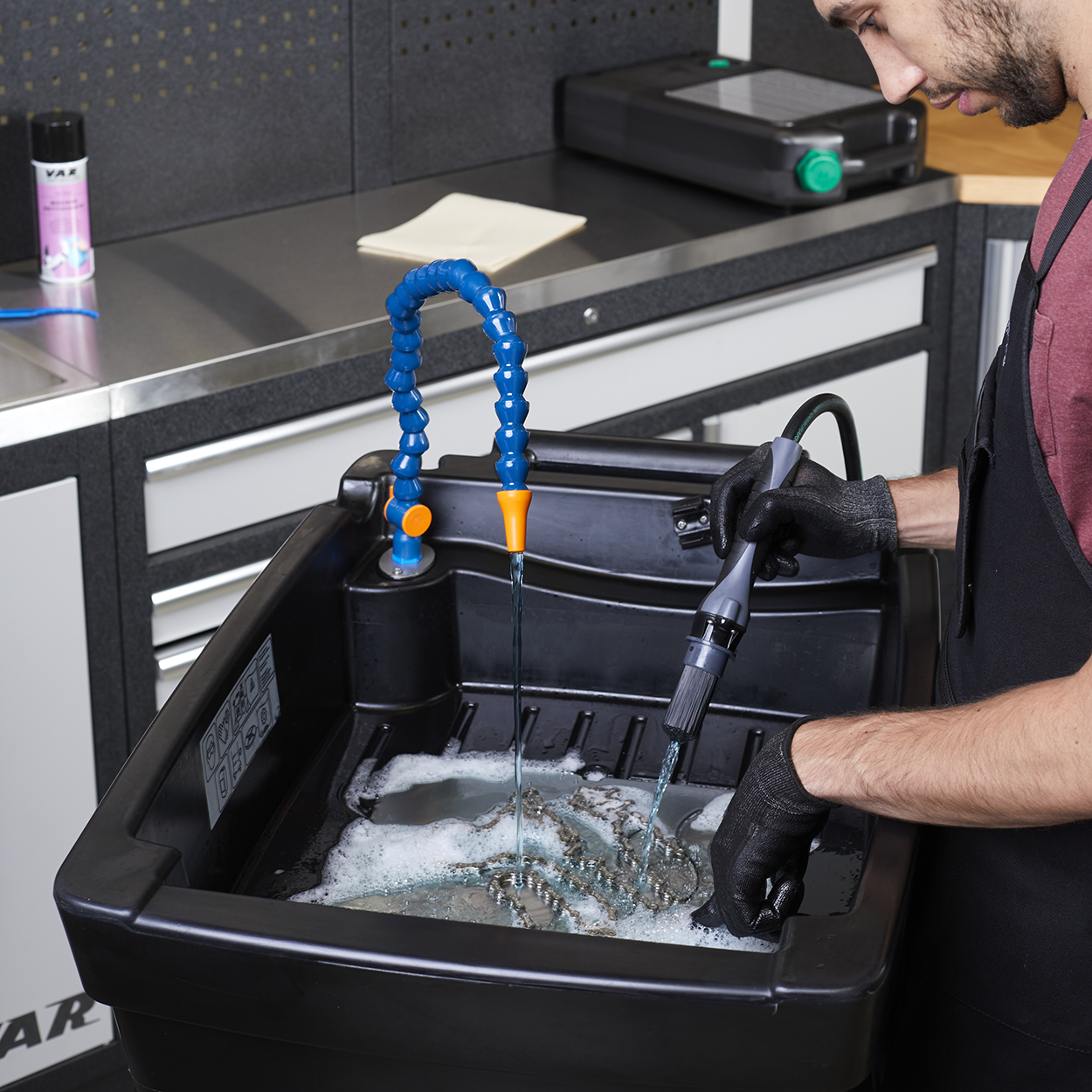
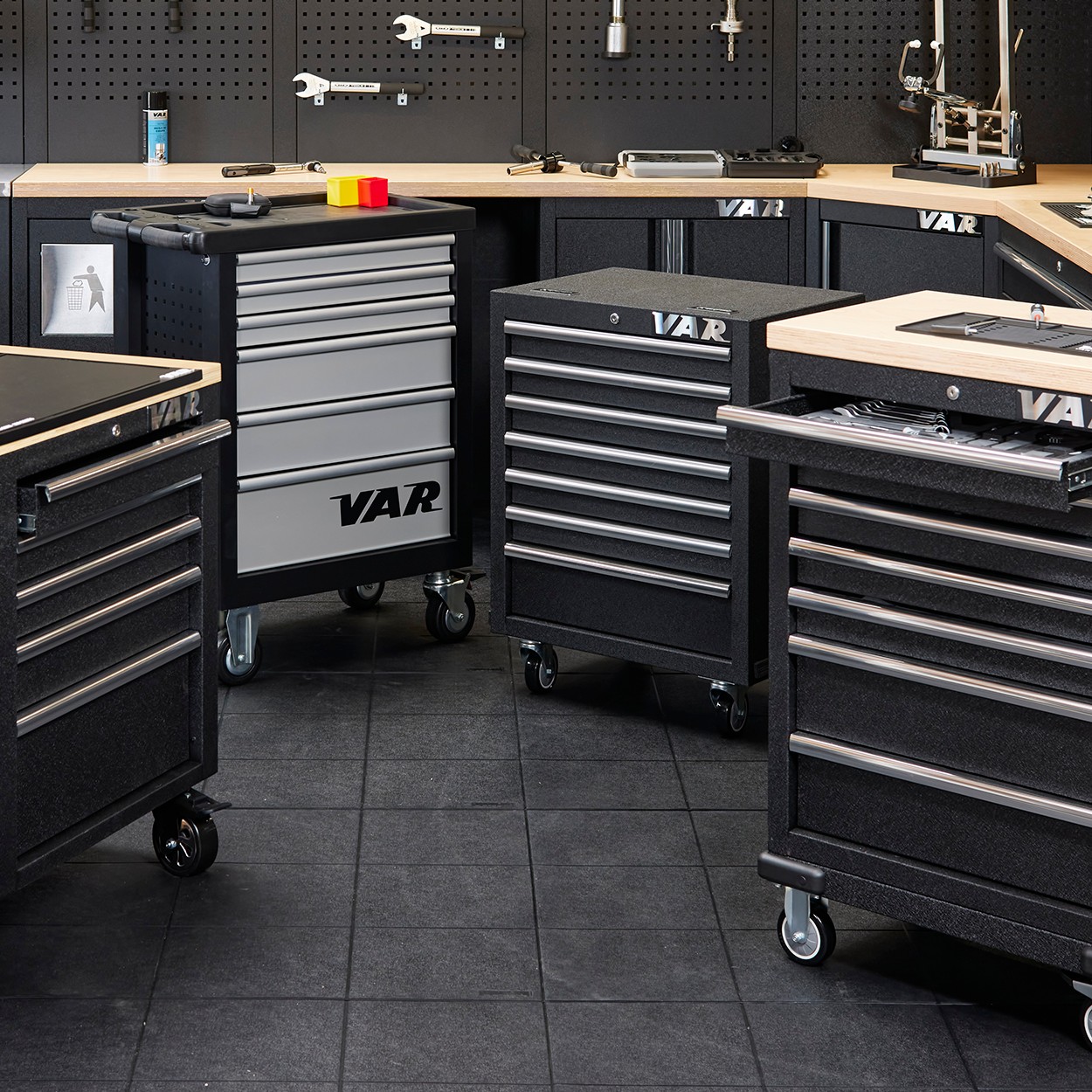
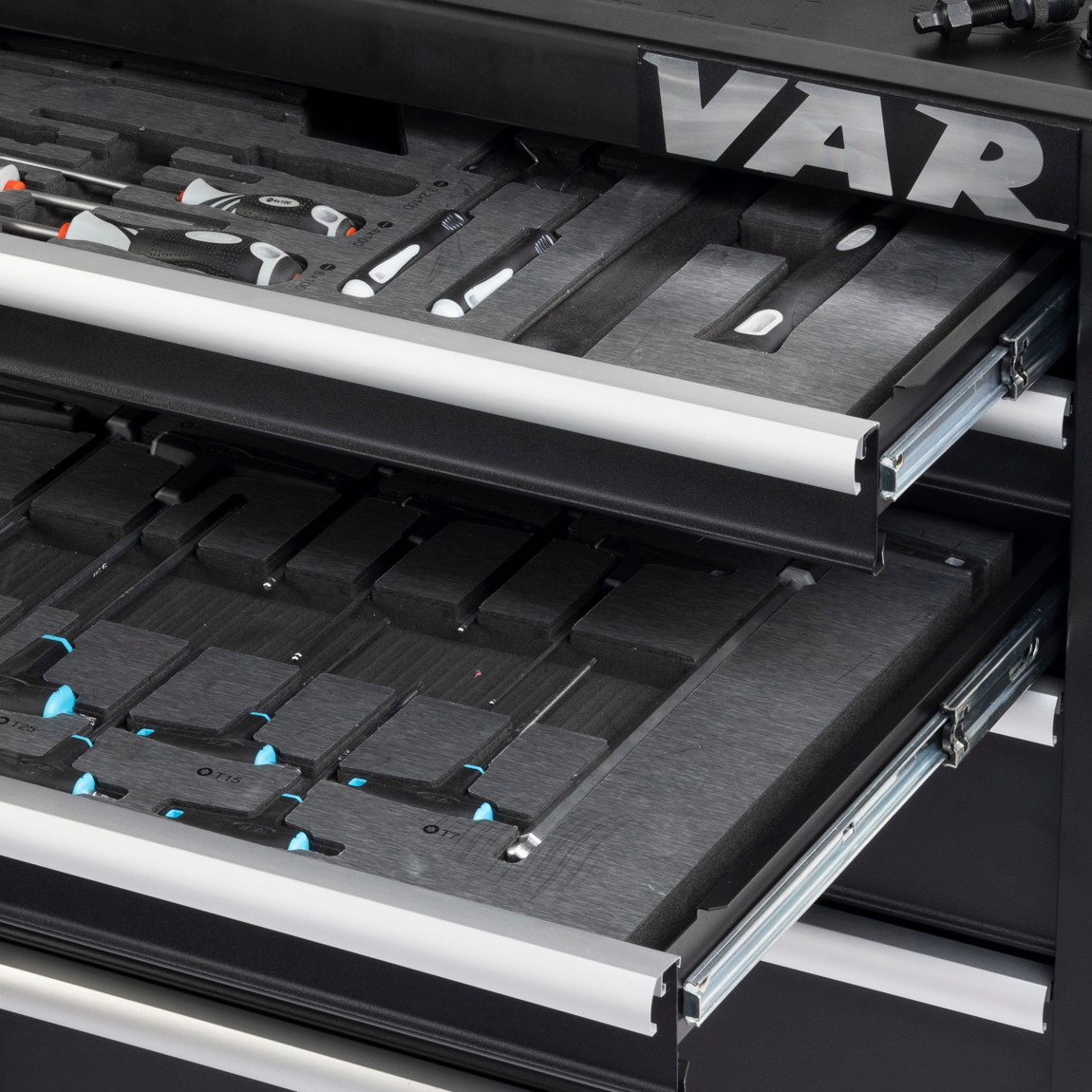
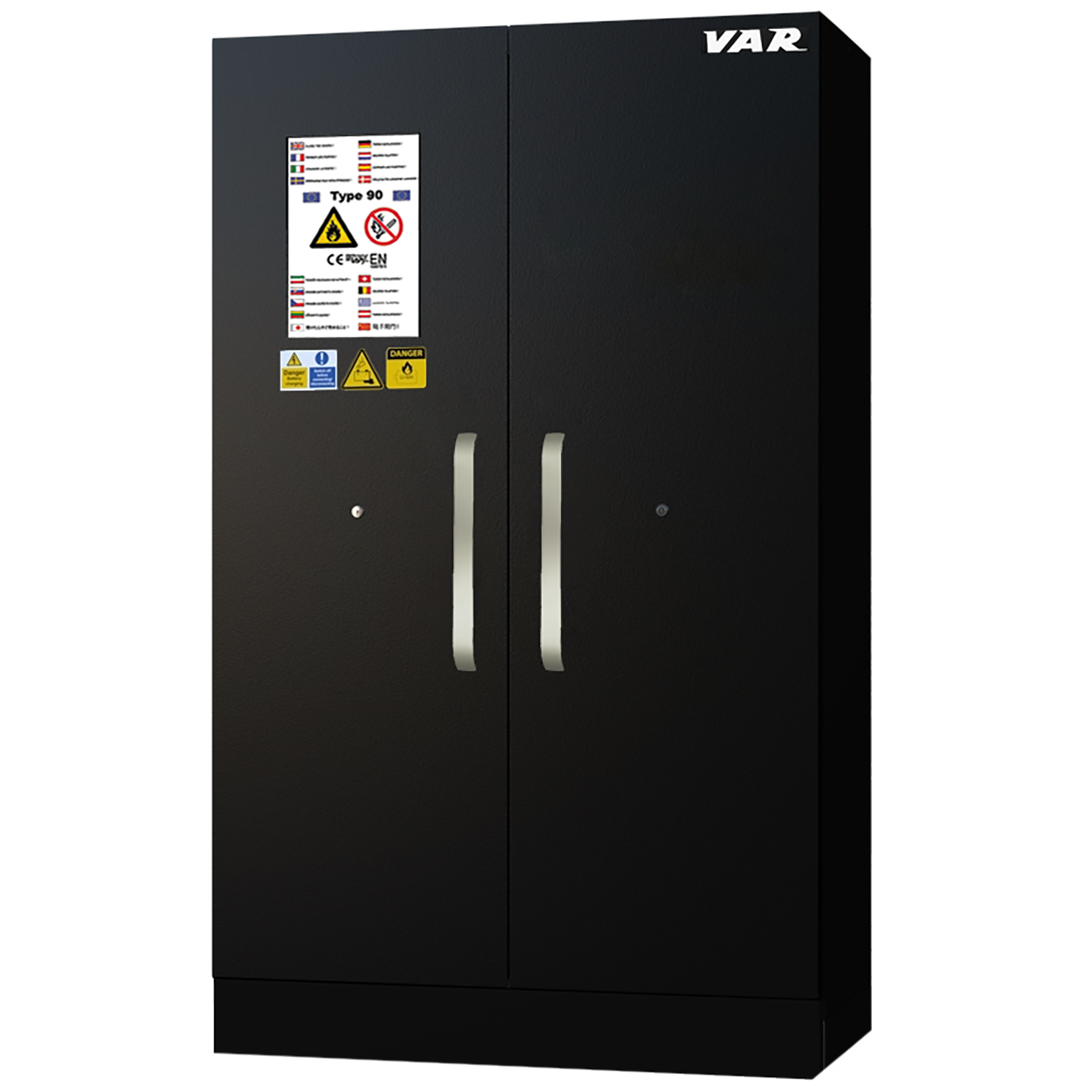
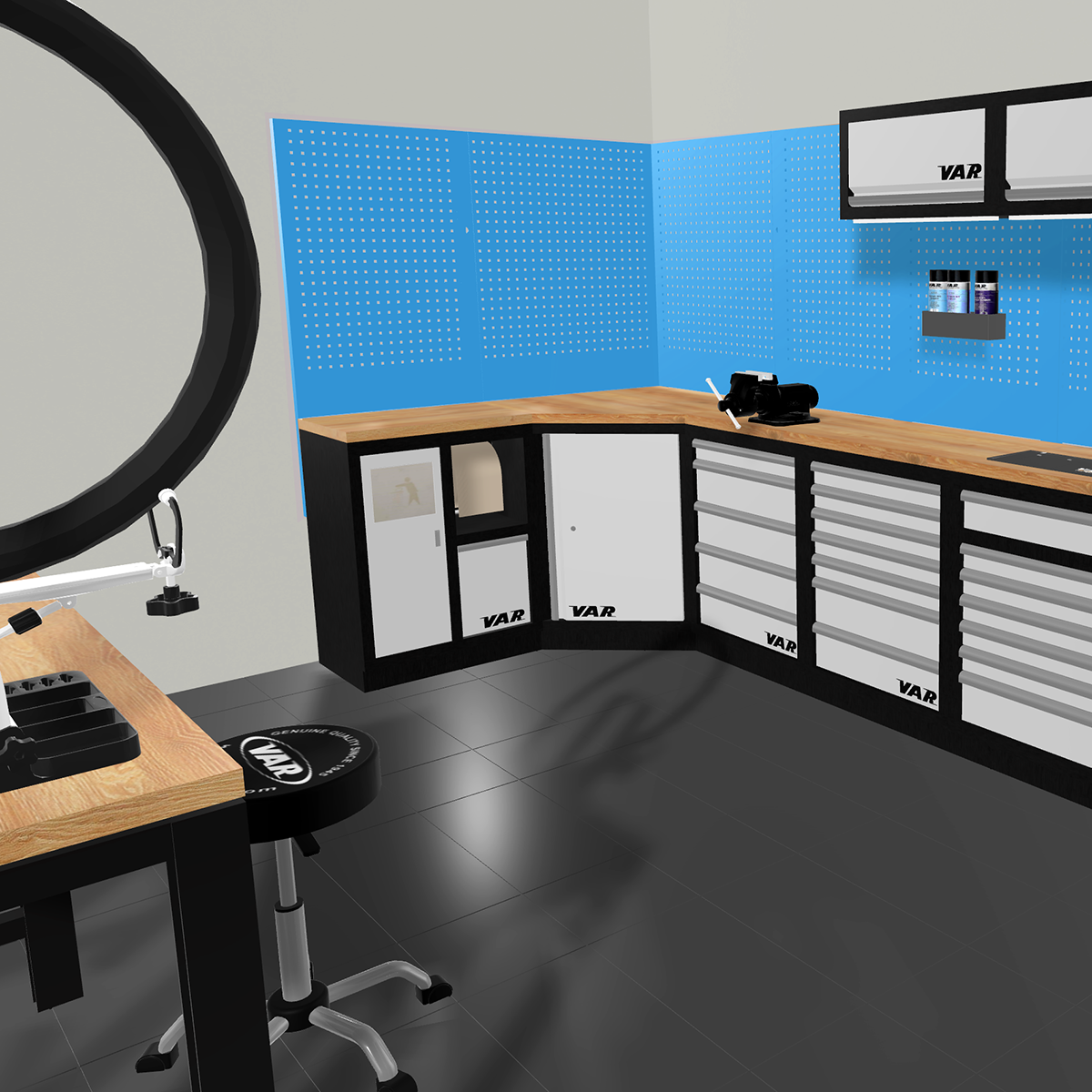
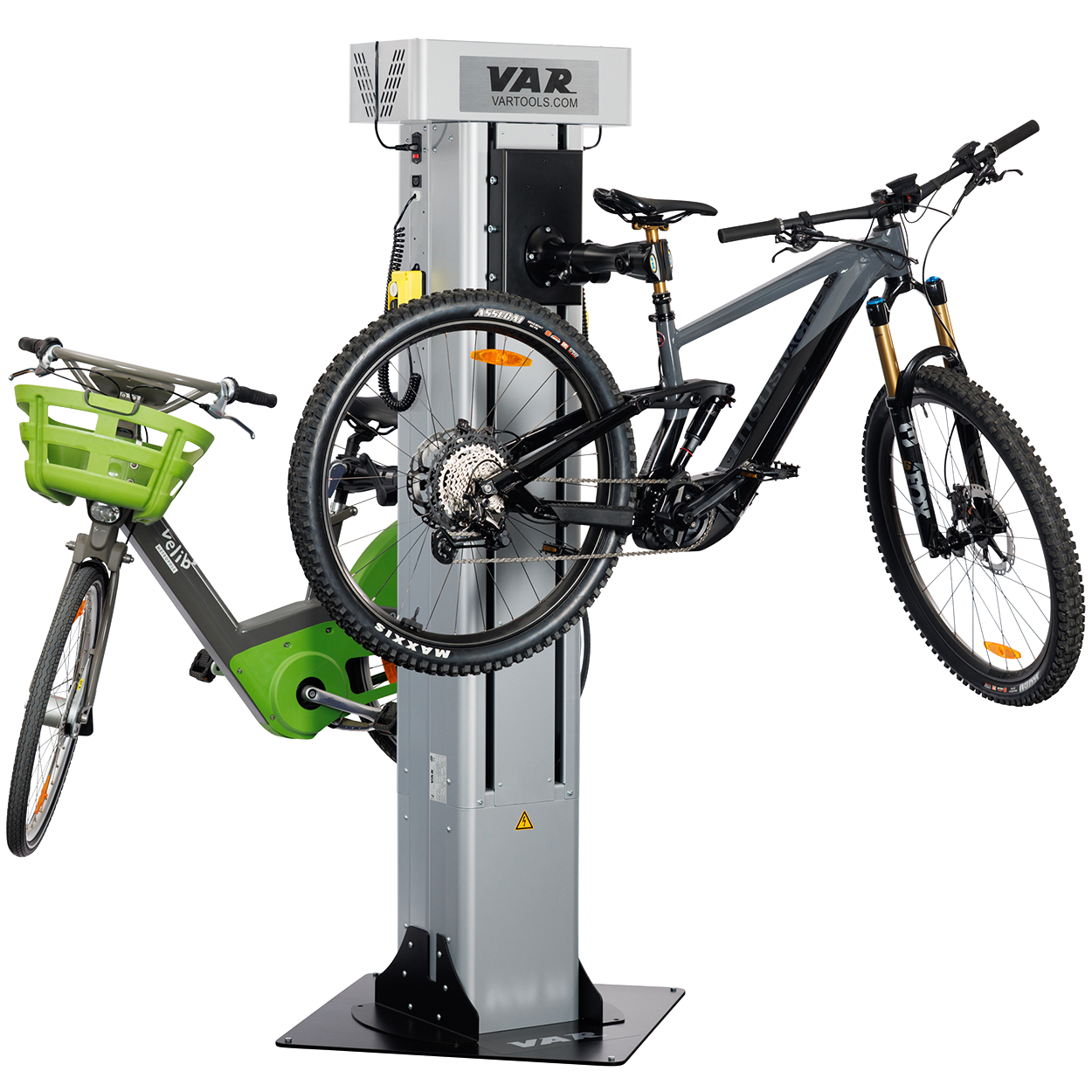
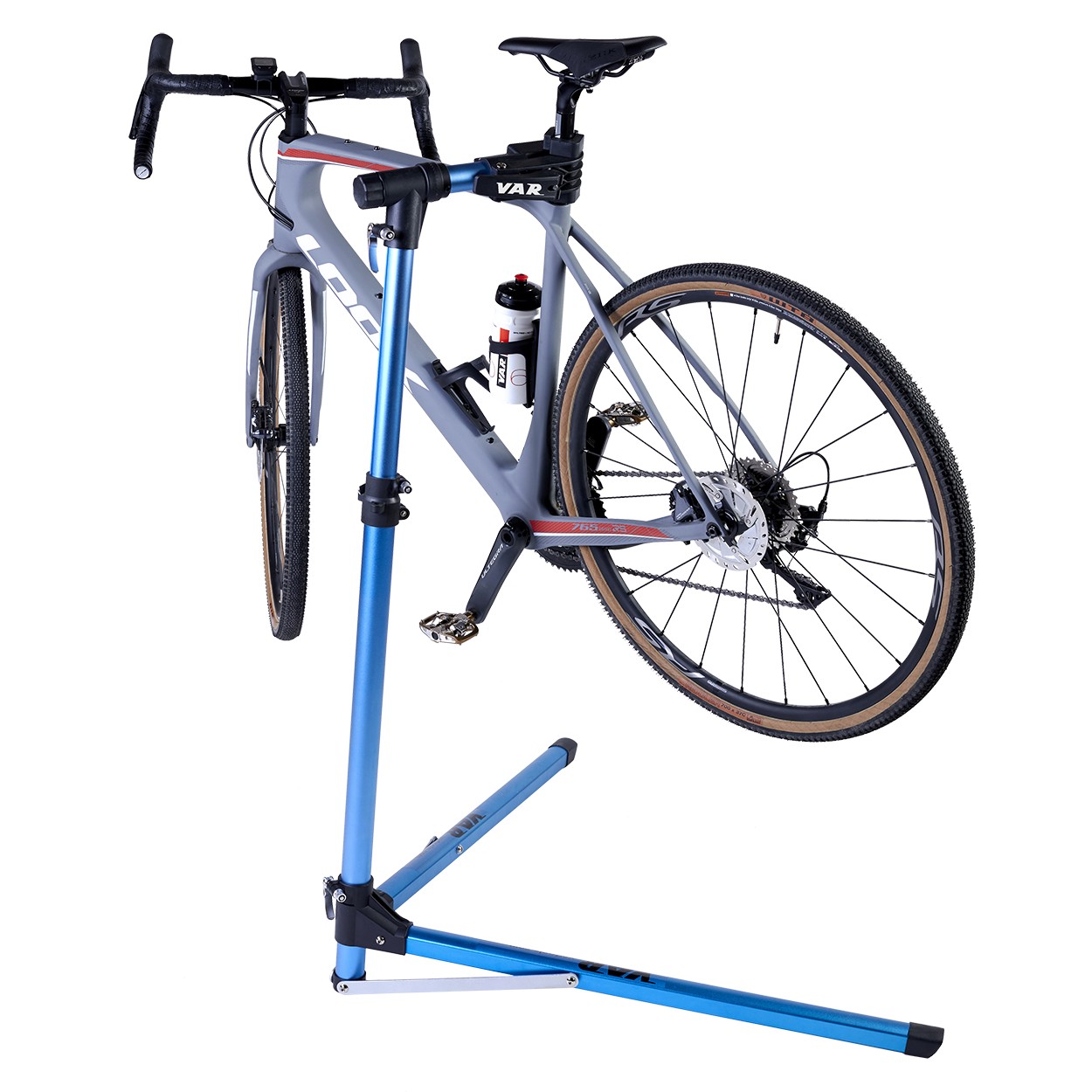
In order to help you create the workshop of your dreams, VAR provides you with its new 3D workshop configurator where you can :
Set up your room : Dimensions, colors, partitions, doors and windows.
Add cabinets by dragging the desired furniture onto the design area.
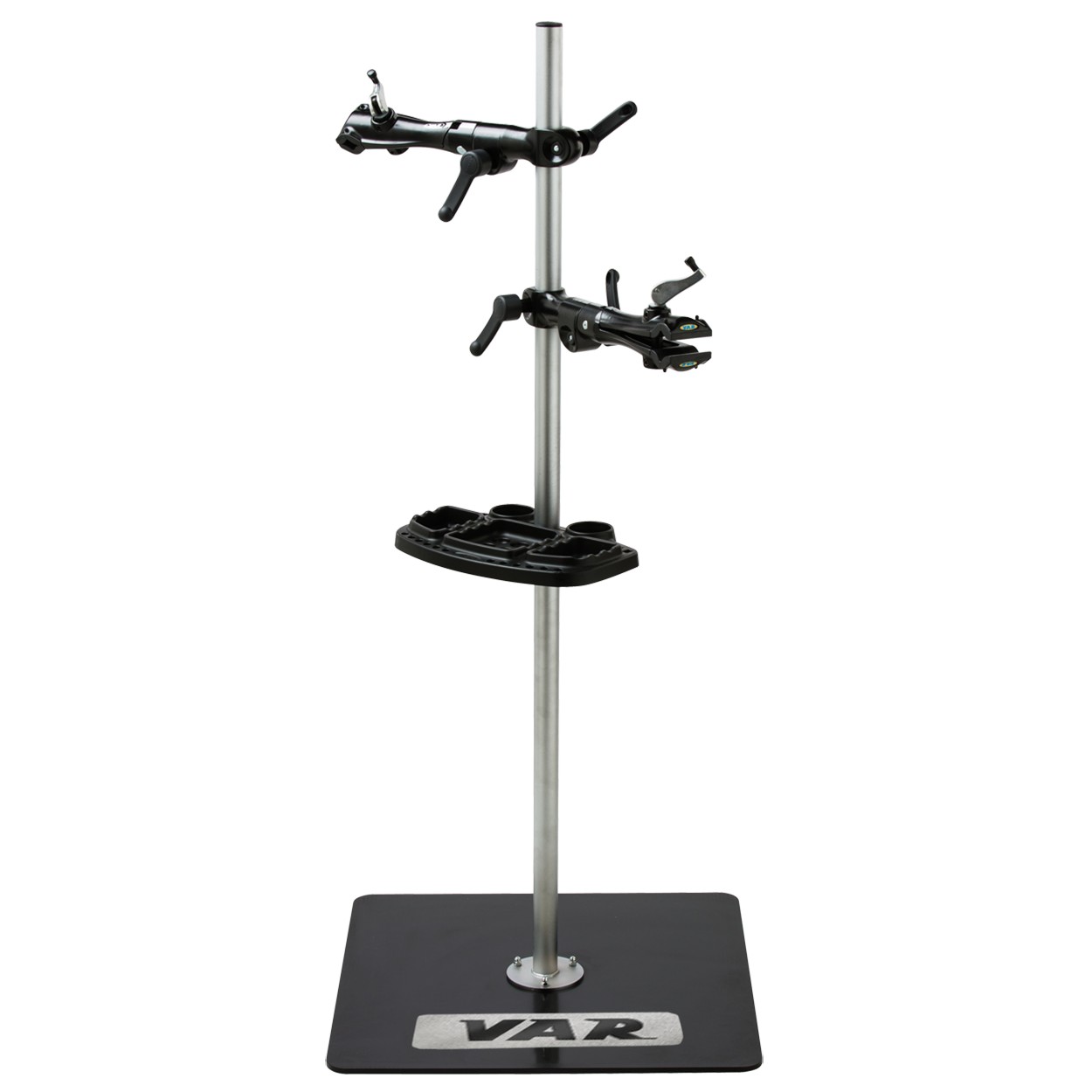
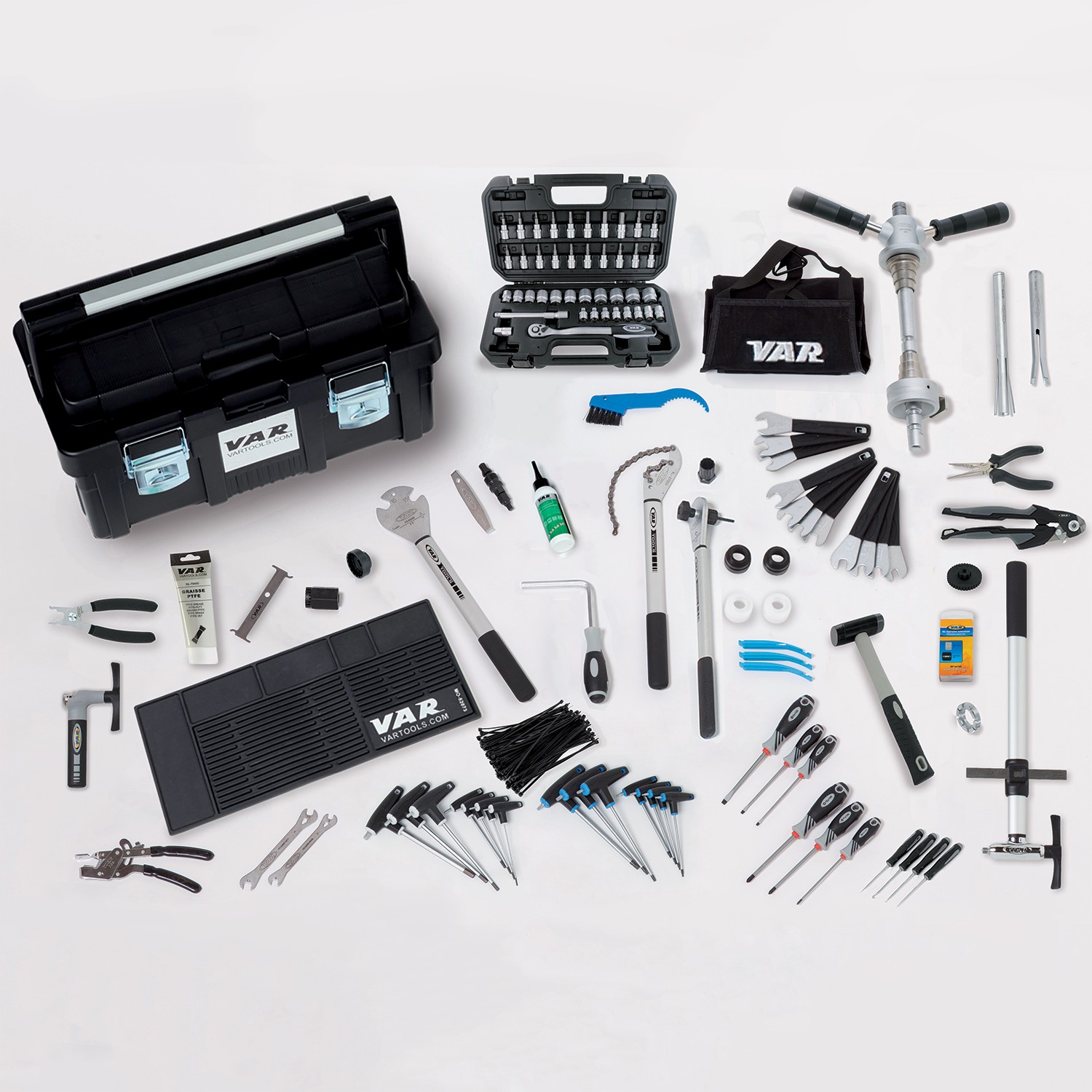
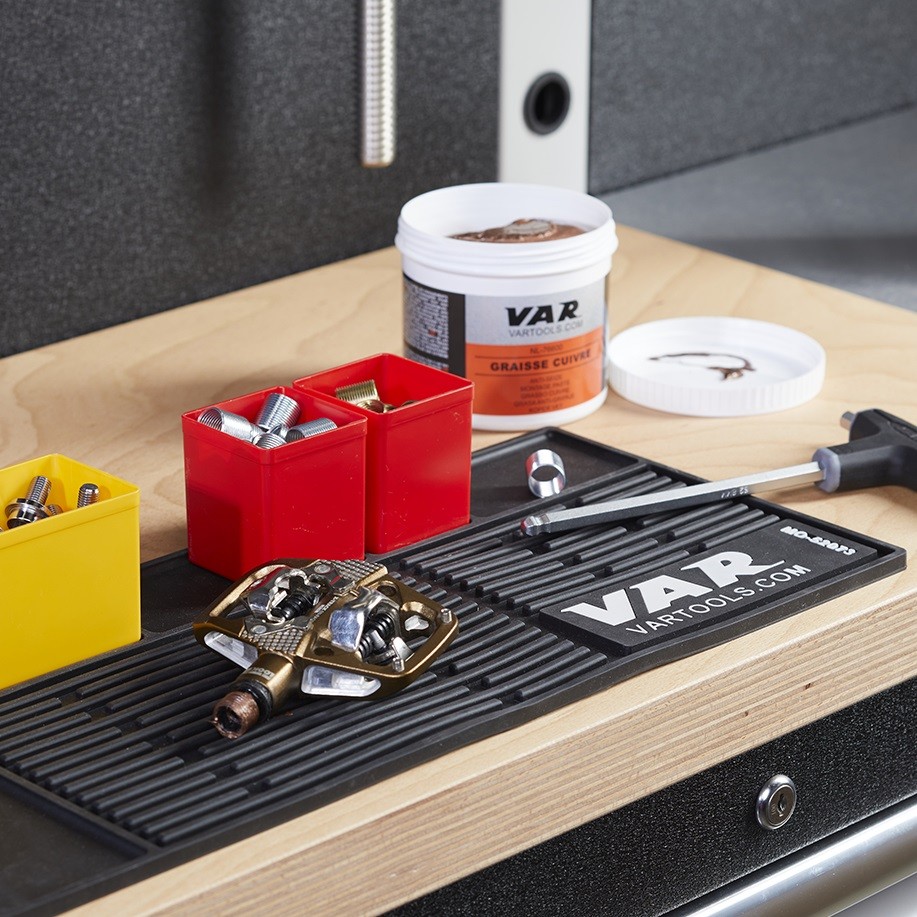
Add equipment : repair stands, cleaning fountain, bench mats, floor tiles, tools.
In order to personalize the workshop, you can add bicycles, computer, posters.

The amount including tax of the project is calculated automatically. Please note: your discounts may not be taken into account.
Then you can send the project to the cart on the website.
FIRST CONNECTION

To access the configurator, you must be logged-in to the B2B site.
The 3D configurator icon will appear at the top next to the search bar. Click the icon.

When you arrive at the configurator, an interface asks you to log-in.
If you do not have an account on the configurator, please click on "Sign up" and fill in your information. After validating, you can log in and access the configurator.
Warning: The 3D configurator account is independent of the VAR B2B site.
To benefit from all the features of the software and avoid backup problems, use the Google Chrome or Mozilla Firefox browser.

BUTTONS

Left-hand column : design features

Right-hand column : vizualisation tools

Room Setup :
Modifications of the dimensions of the room, the colors of the floor and the walls, addition of partition, beam, door, window.
Account area :
To long-in / log-out and change your password.
Workshop furniture :
Addition of workshop cabinets, repair equipment, tool kits and accessories.
Full screen mode :
Once activated, click it again to exit the mode.
Room colors :
Shortcut to change the appearance of walls and floor.
Wireframe / Texture mode :
Switch to wireframe mode to make the dimensions of the remaining elements and spaces. Once activated, click it again to switch to the other mode.
Project details :
Description of the project, detail of the costing of the project, selected articles.
2D / 3D mode :
Visualization of the workshop in 2D or 3D.
Once activated, click it again to switch to the other mode.
Software settings :
Modifications of the visual rendering, shadows and lighting in order to make the use of the software more fluid.
Animation/Design mode :
Switch to animation mode to open the drawers and view without dimension. The design mode allows you to modify the furniture. Once activated, click it again to switch to the other mode.
Assistance :
List of shortcuts.
Viewing tools display :
Regroups all the visualization options and lets you choose the orientation of the 2D view.
Project backup
Access to my projects :
Ability to open an old project.

Top-center button :

Project cost :
The amount indicated is inclusive of VAT. This amount does not include discounts. By clicking on this button you will toggle all the items present in the basket of the vartools.com site in order to make a quote or validate the order. The price indicated on the vartools.com site is always correct.

MODIFY A CABINET

When a cabinet is placed in the workshop, by clicking on it, it turns orange. It thus becomes modifiable and a window appears on the left with all the settings.
General furniture parameters :
Choice of benchtop (wood or stainless steel), installation of tool-holder panels, high chests, panel accessories, selection of the color of the panels and uprights.
Positioning of furniture.
Internal furniture accessories :
Selection of tool storage foams in each drawer.
Change of furniture :
Allows the furniture to be replaced without having to remove it.

Feel free to contact us at contact@vartools.com for any question. 

SECURED PAYMENT
Credit card, Bank transfer
QUICK SHIPMENT
FedEx, Carrier, UPS
Assistance
Technical adviser for your projetcs
Contact-us
02.37.33.37.10 - contact@vartools.com
Available from 8am to 12pm : monday - friday